
The Heads-Up Display, or HUD, is a set of indicators used in WARFRAME to show the player's current status in a game, as well as other important information at a glance. HUD features can be toggled in the Settings menu.
Warframe Gameplay HUD
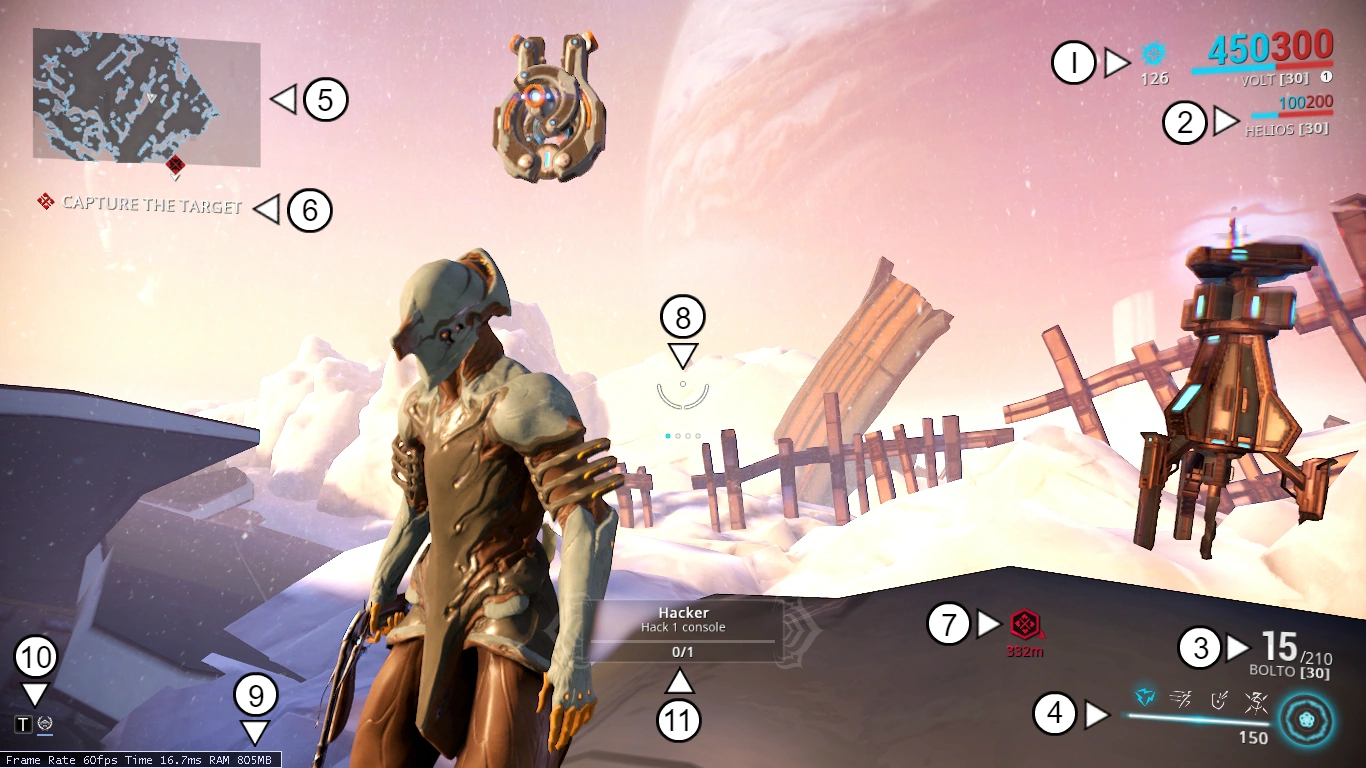
Warframe's HUD as of Update 22.9 (2018-01-17).
The gameplay HUD is the primary player HUD during a mission, which displays relevant information regarding the status of a player's Warframe, Weapons, and other information. The various elements are shown as above:
[1] Player Vitality Stats
This section of a player's HUD displays information related to a Warframe's vitality and buffs, which includes:
- The blue number in bold displays the current amount of the player's Shields, while the red number in bold displays the player's current amount of Health. Both stats are accompanied by colored bars below them that provides a visual indicator of the player's Shield and Health levels, with each bar decreasing in length the less Shields and/or Health the player has. The Shields' blue number and bar can also turn purple while possessing Overshields.
- Displayed below the Health and Shield indicators is the Warframe's current rank and name, and a number inside a small, white ball beside it which displays the player's position within a group, with number 1 denoting the host of the session.
- A translucent bar can be seen underneath the Warframe name, representing the amount of Affinity the Warframe currently has for that level. The bar fills white as the Warframe gains Affinity, and then empties upon ranking up. The bar no longer appears when the Warframe reaches the maximum rank available.
- If the player is under the effect of an ability buff, a blue icon will appear to the left of the player's Health and Shield counter representing the buff, along with a text of the same color that temporarily displays the name of the effect. If the player is suffering a Status Effect or an ability debuff a red color will be used instead.
[2] Ally Vitality Stats
If the player has a Companion (Sentinel, Kubrow, or Kavat) equipped, this section will display the relevant stats for the Companion in a fashion identical to the player's own as outlined above.
- When operating as a Squad with other allied players, the relevant stats of said players can be displayed below the Companion's stats, displaying their Shield, Health, Energy, player name, and player group position. Their chosen Glyph will also be displayed to the right of their stats, overlaid by a white number displaying their current Mastery Rank. These allied player stats are shown by default, but can be hidden by pressing the Hide Player List key (default Z ); alternatively, the Player List can be made active by default via the Show Player List option under HUD in Settings.
- Host player of the session will always have a "1" next to their name. Client players will be numbered from 2-4 on the order they connect to the host.
- If any allied players are under the effect of a team buff ability, an icon representing the buff will appear to the left of their stats, with a countdown timer in white text overlaid on the icon representing the buff's duration.
[3] Weapon Stats
This section displays various stats relating to the player's currently armed weapon.
- The large white number in bold represents the player's magazine, which displays how many rounds are currently left in the weapon's magazine, while the smaller number beside it after the slash (/) indicates the amount of reserve ammunition the current weapon has. This section only appears if a Primary or Secondary weapon is equipped.
- If a melee weapon is equipped, the above section is empty, and relegated to the Melee Combo Counter, which only appears once the player has registered five successful enemy hits within the duration of the Combo Counter. The large, bold number for the melee weapon will represent the damage multiplier for that particular hit chain, while the smaller number beside it after the slash (/) represents the number of combo hits performed.
- If the weapon is a Syndicate weapon or is equipped with Weapon Augments, a black icon representing the Syndicate the Augment is aligned with will be displayed beside either the Ammunition Counter or the Melee Combo Counter, and will fill up with white as it converts Affinity.
- Below the numerical indicators is where the weapon's current rank and name is displayed along with its current rank in square brackets ([]). If a melee weapon is equipped with a Stance, the name of the Stance will be displayed alongside the name in grey text.
- Finally, identical to the Warframe stats, a white gauge underneath the weapon stats display serves as the weapon's Affinity gauge, displaying how much affinity the weapon has acquired for that level.
[4] Abilities
Displayed below the Weapon Stats, this section displays relevant information regarding the Warframe's energy and abilities.
- The four white icons in this section represent the Warframe's Abilities, with their numerical assignment arranged from left to right: the left-most icon represents Ability Number One (1), with the right-most icon representing Ability Number Four (4). The icons will light blue if the ability they represent is currently selected or has recently been used. If an ability's energy cost is more than the Warframe's current energy capacity, or has yet to be unlocked due to insufficient Warframe level, the ability's icon will be grey instead of white. Duration-based abilities will display a running numerical timer on top of their representative icon while the ability is active, which counts down every second until the ability expires.
- The light-blue bar underneath the ability icons is the Warframe's Energy gauge, which displays the current amount of Energy the Warframe has. The gauge will fill with white from left to right as the amount of energy the Warframe has increases. A white number below the gauge numerically displays the amount of energy the Warframe has.
[5] Minimap
The Minimap located at the top left of the HUD is a navigation aid that displays the player's current position in relation to their environment, as well the position and locations of other important elements in the mission.
- The player is represented by a white triangle in the middle of the minimap, pointing in the direction the player is facing.
- The map's terrain features are displayed as white lines on the display, which show the boundaries and locations of various parts of the map. The map's outlines become red if the map has initiated a map-wide alert, or enemies within a particular map become hostile.
- Various objective and unit icons are represented by their own images on the minimap, displaying their current positions. If their positions are located outside of the minimap's visible section, the icons will be visible along the minimap's edge, showing the direction where the object is located.
- The minimap's type can be changed from the default small view to a larger rotating view with the M key. The larger view can also be set as default in the game's Settings.
- Minimap rotation can be disabled in the game's Settings.
Minimap icons can also be modified by altitude markers denoting the object's location in height relative to the player's position: a white arrow head pointing up above the icon represents the object being above the player, while a white arrow head pointing down below the icon represents the object being below the player.
From center to the edge the dimensions are horizontally 50m, vertically 30m, and to the very corner it's around 60m. In other words, the minimap covers a 100 by 60 meter area centered around the player.
| Icon | Legend |
|---|---|

|
Unalerted Enemy |

|
Suspicious Enemy |

|
Alerted Enemy |

|
Elevator Upwards |

|
Elevator Downwards |

|
Terminal |
|
Life Support Device |
[6] Mission Objectives
Information about the mission's current objective is displayed beneath the minimap. Its contents change depending on the current mission type, and can display various amounts of information from the number of enemy targets remaining, to life support levels.
[7] Mission Waypoints
Waypoints are on-screen icons that guide players to a certain location or enemy. The waypoint icons will match the icon displayed in the minimap and can be created by either the mission itself or from another player.
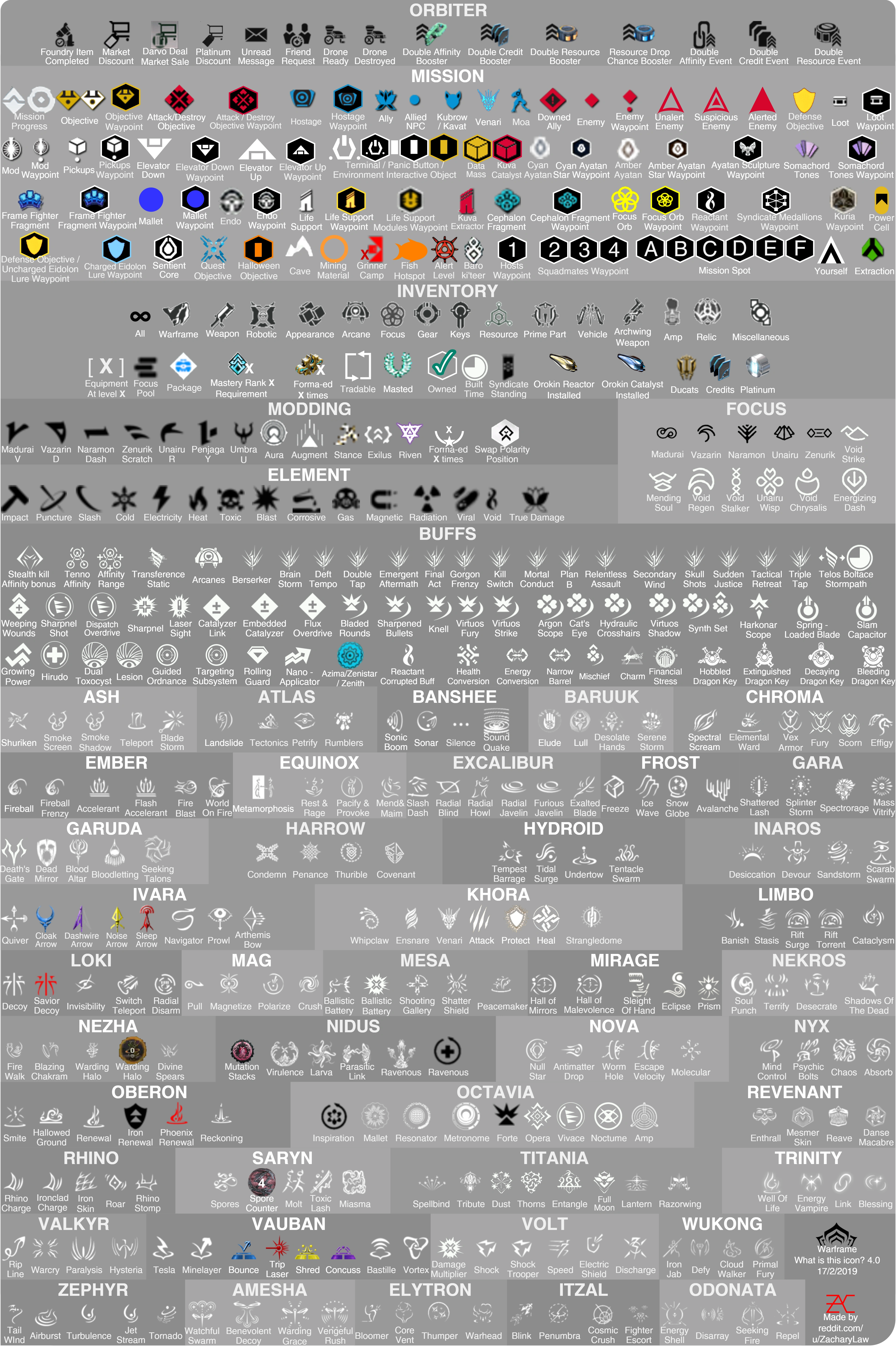
- The following table lists the various icons that can be displayed on the minimap and as onscreen waypoints, as well as their respective legends:
| Icon | Legend | Description |
|---|---|---|

|
Objective | Represents the current mission objective. Normally used to represent static objects like Cryopods on Defense missions. |

|
Attack Objective | Represents objects and units on the map marked for termination. Usually represents objects like Capture objectives and Assassination targets. |

|
Hostage | Represents the hostage objective during Rescue missions. |

|
Waypoint | Used to represent locations or objects that have been marked with a waypoint by allied players. Hosts are always marked with the first number. |

|
Life Support | Shows the location of Life Support Capsules in Survival missions. |

|
Ally | Represents allied Tenno players. (As of the Specters of the Rail update; this has been replaced with an image of an allies chosen warframes default helmet.) |

|
Allied NPC | Represents friendly non-player controlled (NPC) units under the control of the AI. Used to mark units like allied Grineer or Corpus units during Invasions, and Syndicate Operatives. |

|
Kubrow | Represents the player's Kubrow |

|
Kavat | Represents the player's Kavat |

|
Downed Ally | Represents friendly Tenno, Kubrow or NPC allies that have been taken down and are in bleedout phase. |

|
Enemy | Represents hostile enemy units on the map. Only appears when mods or abilities that reveal enemy positions are used, such as  Enemy Sense or Enemy Sense or  Sonar. Sonar.
|

|
Enemy Waypoint | Represents hostile enemy units on the map marked with a waypoint by allied players. Also represents the direction of remaining enemies present during Exterminate missions. |

|
Loot | Represents the location of Pickups. Only appears when using either the Loot Detector or Thief's Wit mods.
|

|
Mod | Represents the location of Mods. Only appears when using either the Loot Detector or Thief's Wit mods.
|

|
Mod Waypoint | Represents the location of Mods marked with a waypoint by allied players. |

|
Extraction Point | Marks the location of the mission's extraction point. |
[8] Aiming Reticle
The Aiming Reticle, shown as a small white dot, is displayed at the very center of the player's screen, and is used to determine where the player's weapons and abilities are being aimed at.
- When aimed at an enemy the reticle will turn red and the bottom semi-circle will expand to four quarter-circles in an elliptical formation.
- When aimed at an ally the reticle will turn blue and the bottom semi-circle will expand to four quarter-circles in an elliptical formation.
- While sprinting, vertical lines will appear under the semicircle.
- A white ring forming clockwise from the top will surround the center dot whenever the player reloads, or is charging up a weapon; its formation corresponding to the reloading/charging's progress.
- The 4 dots below the aiming reticle represent the Warframe's abilities, with an arrangement similar to the Warframe's ability icons as mentioned above. Each dot will glow blue if the ability they represent has recently been used or is currently selected.
[9] Frame Rate, Frame Time, and Ping
This counter at the bottom left of the screen shows the game's current graphical performance. This can be activated within the game's Settings.
Press Esc → OPTIONS → INTERFACE tab → At 8th option Enable / Disable Show FPS
[10] Chat
- Main article: Chat
The chat box can be accessed by pressing the T key or clicking on the "T" icon in the lower left corner. This will bring up a chat screen with multiple tabs. Tabs include: Clan Chat, Alliance Chat, Squad Chat, Player Hub (Relays, Dojos, etc.) Chat, Region Chat, Recruitment Chat, Trade Chat, Council Chat (only available for players who have been chosen to join the Design Council), and tabs for any direct messages between two players. The chat box can be closed either by pressing Esc or clicking the minimize button (-) in the upper right or clicking anywhere else besides chat box.
Chat commands are typed in line with the message with a single space between the command and the message.
| Function | Command | Note |
|---|---|---|
| See Chat Commands | /?
|
|
| Talk to Region (global) | /g message
|
Switch to global (aka Region) chat tab and optionally post message |
| Talk to Clan | /c message
|
Switch to Clan chat tab and optionally post message |
| Talk to Squad | /s message
|
Switch to Squad chat tab and optionally post message |
| Talk to Relay | /r message
|
Switch to Relay chat tab and optionally post message |
| Talk to Design Council | /d message
|
Switch to Council chat tab and optionally post message. Only usable by those in the Design Council. |
| Talk to user (whisper) | /w user message
|
Send a private message to user |
| Ignore/Un-ignore user | /i user
|
This does not block Clan invitations from the ignored user. Additionally, an ignored user will get "User is not accepting invitations." warning when attempting to invite you to their squad, and "User is ignoring you." warning when attempting to send you a whisper message you or add you as a friend. If they are already your friend, they will not be automatically removed as your friend however. |
| Switch Active Chat Tab | /t
|
Switches to the next chat tab to the right of the currently active one |
| Add Friend | /f add user "message"
|
Add user as a friend with an optional "message" |
| Remove Friend | /f remove user
|
|
| Set Clan "Message of the day" | /motd message
|
Requires Ruler or Herald permissions. |
| Invite user to session | /invite user
|
|
| Join a user's session | /join user
|
|
| View user profile | /profile user
|
|
| Jump to first player in user list with letter | /goto letter
|
|
| Disables private messages and invites | /dnd
|
Do Not Disturb, will provide an auto-response "Hello, I'm using Do Not Disturb mode. Please contact me later". Note that players who already sent you a whisper message in this game session before you enabled /dnd mode will still be able to continue messaging you. |
| Enables private messages and invites | /normal
|
|
| Teleports you back to the last "good" position | /unstuck
|
Only usable in missions with a 2 minute cooldown between uses. Also sends a bug report to Digital Extremes at the end of the mission. |
| Linking to an item | [item]
|
Typing 'Riven Mod', 'Song', 'Zaw', 'Amp' or 'Kitgun' will open menus where player can select the desired item to link. |
| Linking Warframe appearances | [Look]
|
Pulls up a window with loadouts for selection. |
| Linking Warframe/weapon mod configuration | [Mod Config]
|
|
Linking  Octavia's Songs Octavia's Songs
|
[Song]
|
Pulls up a window with songs for selection. |
| Linking to Clan's profile page | {clan}
|
|
| Linking to user's profile page | @user
|
Will also ping this channel in user's chat window. |
| Query farm locations | where item
|
Only works in Region and Relay channels. item can be the name of a warframe, weapon or resource and may optionally be enclosed in []. E.g. where mag, where [Tellurium]
|
| Query event schedule | when event
|
Only works in Region and Relay channels. E.g. to see Baro Ki'Teer's schedule: when baro
|
| Helpful responses | See KickBot | Only works in Region and Relay channels. |
[11] Nightwave Challenges
Progress towards certain Nightwave challenges may appear here. The challenge name, description, and current progress is displayed in a grey box in the bottom center of the screen at the beginning of each mission. This box will fade away after about five seconds, but can be viewed again in the Menu (Esc ).
Orbiter Icons
Various icons can appear while a player is in the Orbiter to display certain information. These icons will periodically flash on the upper right corner of the player's screen, and will rotate between various applicable states. If there is only a single icon appearing, it will stay frozen on the player's screen.
| Icon | Legend | Description |
|---|---|---|

|
Foundry Item Completed | Denotes that a Foundry construction project has been completed. A number in white text below the icon shows how many items are completed. |
|
Market Discount | Shows how long your Market Discount lasts. |

|
Unread Messages | Notifies the players of their unread inbox messages. |

|
Friend Requests | Shows how many friend requests are unattended in the players' friend list. |
|
Drone Ready | Notifies the players that at least one of their Extractors are ready to be claimed. |
|
Drone Destroyed | Notifies the players that one of their Extractors have been destroyed in the process. |
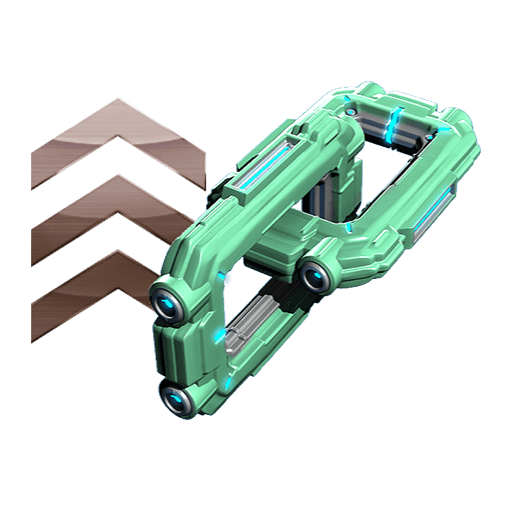
|
Double Affinity Booster | Shows that the Double Affinity Booster is active. |
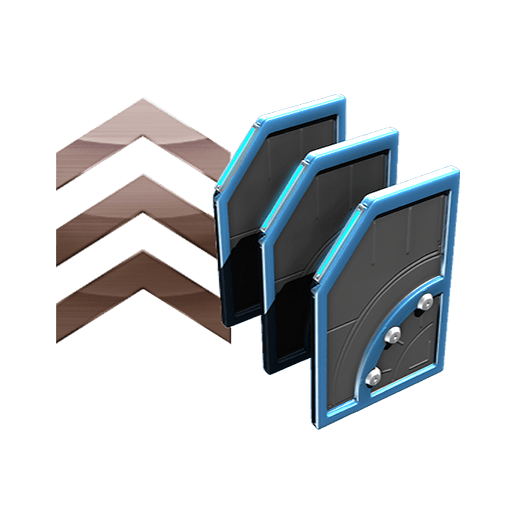
|
Double Credit Booster | Shows that the Double Credit Booster is active. |
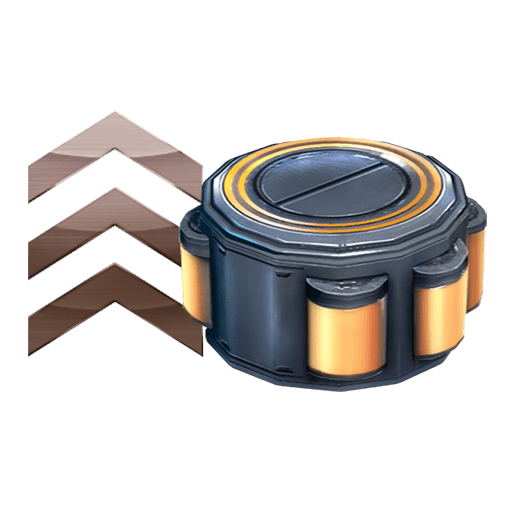
|
Double Resource Booster | Shows that the Double Resource Booster is active. |
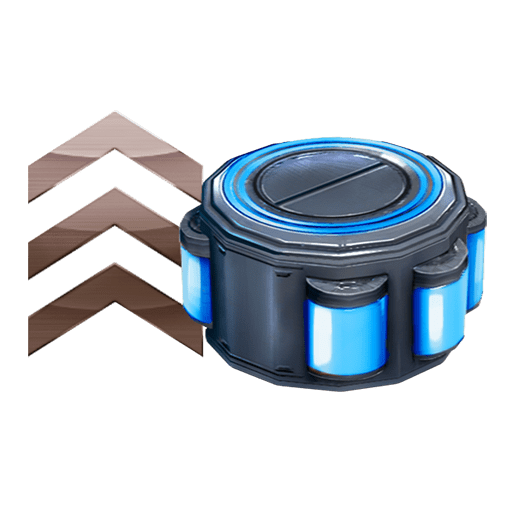
|
Resource Drop Chance Booster | Shows that the Resource Drop Chance Booster is active. |
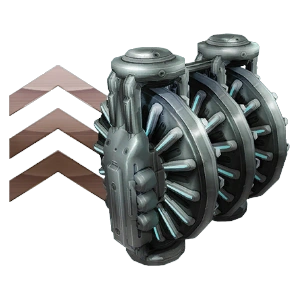
|
Mod Drop Chance Booster | Shows that the Mod Drop Chance Booster is active. |
|
Double Affinity Event | Shows that the Double Affinity event is active. |

|
Double Credit Event | Shows that the Double Credit event is active. |

|
Double Resource Event | Shows that the Double Resource event is active. |

|
Darvo Deal Market Sale | Limited item on sale |
Customization
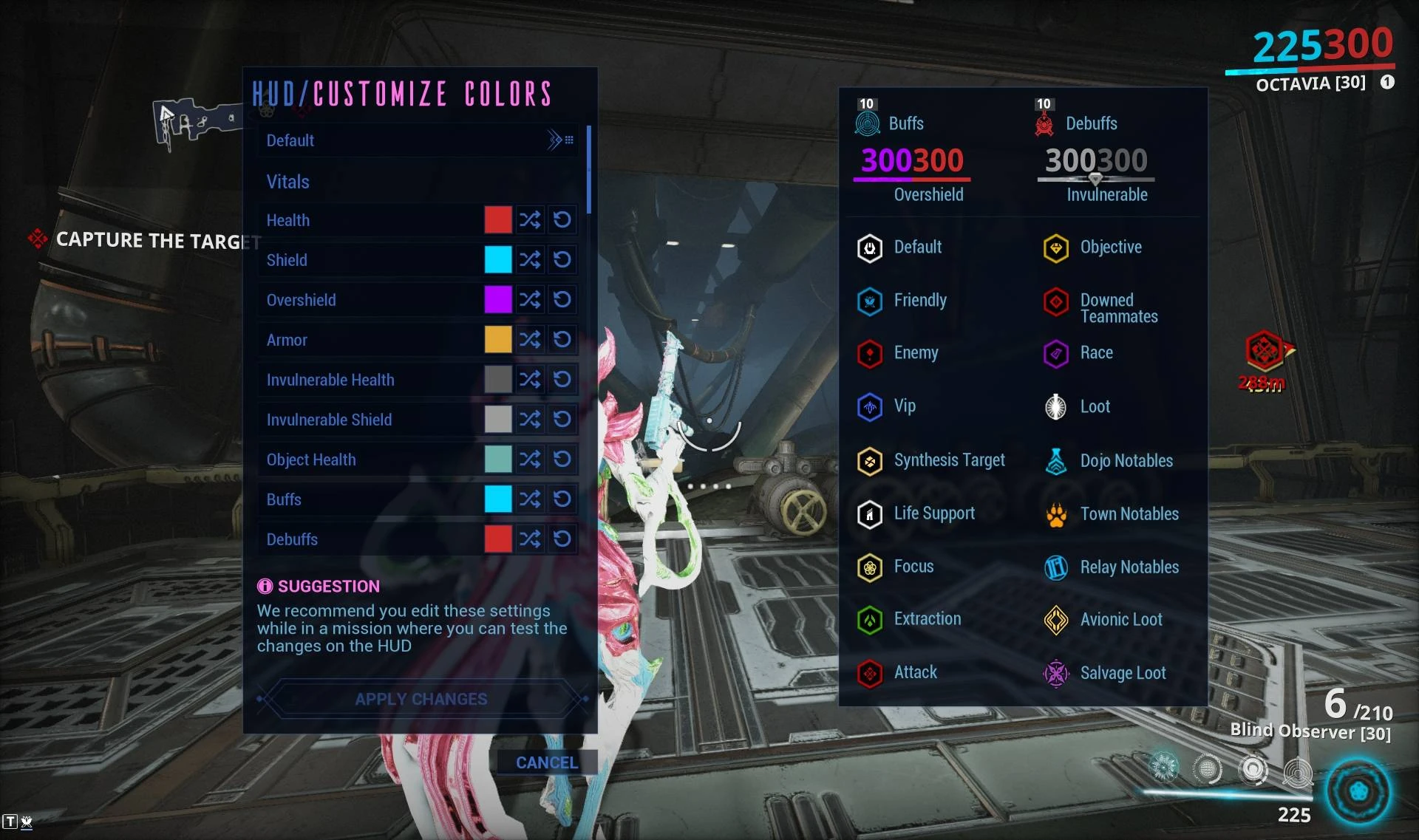
As of Update 29.10 (2021-03-19), players can change the color scheme of their HUD through the Settings. Players can individually recolor certain HUD elements using colors from owned Color Picker Extensions or choose from ten preset color themes provided by the developers:
- Default
- Protanopia
- Deuteranopia
- Tritanopia
- Grineer
- Corpus
- Tenno
- Vitruvian
- Lotus
- Neon
Here is a list of what players can customize:
| HUD Element | Default color | Approx. Hex Code |
| Health | #cc2a28
| |
| Shields | #01d8ff
| |
| Overshields | #b201fe
| |
| Armored health | #e0a635
| |
| Invulnerable health | #585858
| |
| Invulnerable shields | #9c9c9a
| |
| Object health | #6dada7
| |
| Buff icons | #01d8ff
| |
| Debuff icons | #cc2a28
| |
| Selected ability | #01d6fe
| |
| Unselected ability | #f0f0ee
| |
| Reticle | #ffffff
| |
| Hit indicator | #e9bb06
| |
| Headshot indicator | #c80406
| |
| Normal (yellow) crit | #ffff00
| |
| Big (orange) crit | #fe6c09
| |
| Super (red) crit | #fe0000
| |
| Default marker | #ffffff
| |
| Friendly marker | #0795d5
| |
| Enemy marker | #c80406
| |
| Loot marker | #ffffff
| |
| Downed teammate marker | #c80406
| |
| Objective marker | #e9ba08
| |
| Attack marker | #c80406
| |
| Extraction | #43b306
| |
| Tactical highlight | ||
| Focus drop | #e4d570
| |
| Life support module | #e9ba08
| |
| Dojo notable | #01d6fe
| |
| Relay notable | #15b7ff
| |
| Town notable | #ff9a0c
| |
| Plexus mod loot | #fed454
| |
| Salvage loot | #a945bf
| |
| Energy spawner | #3977fe
| |
| Synthesis target | #ffd47b
| |
| K-Drive Race | #9b07cb
| |
| VIP target | #3765ff
| |
| Incoming life support | #23effe
| |
| Kuva harvester | #a01b1c
| |
| Text | #ffffff
| |
| Disabled text | #808080
| |
| Negative text | #c80406
| |
| Text background | #414141
| |
| Objective progress | #ffffff
| |
| Objective glow | #01a6ff
|
Media
Patch History
Default
- This is a default message. If you are expecting something else, the Scrollbox template bugged on what you tried to display.


Discussion:Thread:1263149#3