The Trading System allows players to trade any tradeables (see below) at the Clan Dojo (excluding Railjack), or at the dedicated trading relay - Maroo's Bazaar. There is a minimum Mastery requirement of Rank 2 in order to trade, and up to 6 items can be traded per transaction by each partner (for a maximum of 12 items traded total).
Prerequisites
- See also Troubleshooting below.
There is a minimum Mastery requirement of Rank 2 in order to trade.
As of Update 25.0 (2019-05-22), players need to enable 2-Factor Authentication on the official Warframe site in order to gain access to trade. Follow these steps to enable 2FA:
- Go to the Official Warframe website's Account Management page and log into your PC or Console account if needed.
- Click on “USER INFORMATION” side tab if it is not active already.
- You should see there
“Enable Two-Factor Authentication (2FA) and receive a free in-game cosmetic: Enable” - click on "Enable". - A popup message will appear at the top of the webpage saying “PLEASE CHECK YOUR EMAIL FOR FINAL CONFIRMATION. IF YOU DO NOT RECEIVE WITHIN THE NEXT HOUR PLEASE CONTACT SUPPORT AT SUPPORT.WARFRAME.COM FOR ASSISTANCE.”
- You should receive an email within an hour with a link to confirm. Click the link, and wait for the Official Warframe's website to open with a popup message at the top saying
“TWO-FACTOR AUTHENTICATION HAS BEEN ENABLED FOR YOUR ACCOUNT.”
Tradeables
Trades are charged for a trade tax which amount in  Credits based on the rarity of the commodity. Players will need to pay the respective
  tax for the item they receive in the trade. Additionally, a hub tax may be payable in addition to baseline game tax:
- Maroo's Bazaar has a fixed additional 10% hub tax.
- Clan Dojo tax can be set by the Clan that owns the Dojo and can range an additional 0-100% of baseline game tax (this can be altered at any time by any clan member with Treasurer privilege at any Trading Post in the Dojo).
Not all items can be Traded. Set up shop in Maroo's Bazaar or your Clan's Dojo to see the full list of items that you currently own that are eligible to be sold (hold the Gear key (Q ) and select "SET UP SHOP").
All tradeables are split into the following categories in game GUI (only categories for which a player has tradeable items will be shown):
- MOD (excludes Flawed Mods, Umbra Mods, and Primed Mods obtained from Daily Tribute). This also includes:
- ITEMS
- WEAPONS (includes Syndicate, Prisma, Vandal, Wraith and other tradeable weapons)
- COMPANIONS (only Sentinels and their weapons obtainable from Baro Ki'Teer)
- ARCHWING WEAPONS (only those obtainable from Baro Ki'Teer)
- APPEARANCE (includes Arcane Helmets and Syndicate armor parts)
- ARCANES (including both unranked and ranked ones)
- FOCUS, includes:
- Focus Lenses (their blueprints are shown in a separate BLUEPRINTS category below)
- KEYS, includes:
- RESOURCES, includes:
- Beacons for Vay Hek Frequency Triangulators
- Damaged and repaired Necramech components
- Mutalist Alad V Nav Coordinates
- Proof Fragments
- Refined Gems
- PRIME PART, includes:
- Prime blueprints (also repeated in BLUEPRINTS category below). Note that Warframe parts crafted from Prime blueprints can no longer be traded.
- Prime weapon parts
- AYATAN TREASURES includes sculptures both empty and with stars slotted (note that unslotted stars are shown in a separate MISCELLANEOUS category below).
- BLUEPRINTS, includes:
- Focus Lens blueprints
- Hound parts blueprints
- Landing Craft Blueprints
- Prime blueprints
- Sands of Inaros blueprint
- Tradeable Weapon blueprints
- EMOTES, includes Syndicate emotes
- IMPRINTS
- RELICS, both Intact and Refined
- MISCELLANEOUS, includes:
- Ayatan Stars
- Fish
- Scenes
- Tradeable Weapon and other non-Prime parts (e.g. those of Nautilus sentinel)
- Tenno Lab Archwing parts
 PLATINUM
- Only shown in a trade, but not shown when using "Set up shop"
- Cannot trade Platinum earned for free, either an account's starting Platinum or Platinum earned from giveaways
Trade Tax
| Amount of tax1 per commodity | ||||
|---|---|---|---|---|
| Rarity | Common | Uncommon | Rare, Requiem, Riven | Legendary |
| Tier | Lith, Meso | Neo, Axi | Eidolon Capture | |
 Mods (including Ancient Fusion and Legendary Cores) and Void Relics Mods (including Ancient Fusion and Legendary Cores) and Void Relics
|
2,000
|
4,000
|
8,000
|
1,000,000
|
 Arcane Enhancements Arcane Enhancements
|
2,000
|
4,000
|
8,000
|
100,000 (Unranked) 300,000 (Rank 1) 600,000 (Rank 2) 1,000,000 (Rank 3) 1,500,000 (Rank 4) 2,100,000 (Rank 5)
|
Uncommon-tier items:
|
4,000
| |||
Common-tier items:
|
| |||
| Platinum4
|
500 per unit of Platinum
| |||
1) The table above shows only baseline game tax. This will be higher by the hub tax: either additional 10% if trading in Maroo's Bazar, or additional 0-100% if trading in a Clan Dojo - specific surplus tax will be different in every Dojo and will be the tax rate that was last set by any of the Clan's Treasurers.
2) Each Ayatan Star slotted into a Sculpture increases the trade tax by 2,000.
3) Only Tradeable Weapon that are bought pre-built can be traded. They must be unaltered by any Affinity, Forma, Lens, or Orokin Catalysts to be tradeable.
4) Players cannot trade away the initial amount of platinum that all accounts start off with. This is to prevent players from creating new accounts to farm platinum. Players cannot trade platinum that has been gifted to them either.
Limitations
- The number of trades that can be made per day is the same as the player's Mastery Rank, with exception to Founders, who get an additional two trades per day. The trade limit is refreshed daily at GMT 00:00 and is not affected by the number of items exchanged in each transaction. Furthermore, ranking up will provide an additional trade even if the daily limit has been reached.
- At most 6 items may be offered by each trading partner in any given trade, with multiple copies of the same item counting as separate items (exception is Platinum, multiple units exceeding 6 of which may be offered but will still only occupy only 1 of the 6 slots in a trade). If the partners desire to trade more items - they will have to conduct additional trades, provided each of them still has available daily trades left.
- For Warframes, players can only trade the respective Prime Warframe Blueprints. Parts that have already been crafted through any blueprints, and the fully crafted Warframes themselves cannot be traded. Note that if you inadvertently started the crafting process in the Foundry and then realised you wished to trade away the blueprint instead - it is possible to cancel the crafting process before completion and get the Prime blueprint back, as well as all resources used, except Argon Crystals.
- For weapon parts and blueprints (including those archwing and sentinel weapons) and sentinel companions only blueprints and parts for the Prime, Carmine, Vandal and Wraith weapon variants are tradeable. Any other weapons and their blueprints or parts cannot be traded, except for the parts and blueprints (with some exceptions) of following ones, which can in fact be traded:
 Arum Spinosa,
  Athodai,
  Broken War (only parts),
  Epitaph,
  Orvius (only parts),
  Pathocyst,
  Pennant,
  Quellor,
  Shedu (only parts),
  Sheev,
  Sporothrix,
  Stahlta (only parts),
  Stropha (only parts),
  Velox (only parts), and
  Wolf Sledge.
- A number of Tradeable Weapons are tradeable as a whole, but only if they are completely unranked with no Affinity, and substantially unaltered - i.e. with no Forma, Lens, or Orokin Catalyst applied.
- Cosmetic-only changes however are permitted, i.e. these weapons will remain tradeable even if recolored, customized with skins, Cosmetic Attachments, modded with regular Weapon Mods, or freely used in the Simulacrum, due to no affinity being gained from killing the spawned enemies. This is particularly useful for trying out expensive Syndicate and Prisma weapons to test their accuracy, attack speed/rate of fire, range/damage falloff, recoil, reload speed, or general handling characteristics without fear of losing the ability to sell or resell the weapons to other players later, if they are not to the user's liking.
- A number of Tradeable Weapons are tradeable as a whole, but only if they are completely unranked with no Affinity, and substantially unaltered - i.e. with no Forma, Lens, or Orokin Catalyst applied.
- Flawed Mods cannot be traded.
- Primed Mods obtained from Daily Tribute cannot be traded.
- Umbra Mods cannot be traded.
- Last copy of any Mod with Precept (
 ) polarity cannot be traded away, the seller will get an error "Unique copies of abilities cannot be traded".
 - Riven Mods can only be traded if both players have a Mastery Rank of 8 or higher.
- Legendary-grade Arcane Enhancements (
 Arcane Barrier,
  Arcane Grace,
  Arcane Energize,
  Arcane Reaper,
  Longbow Sharpshot,
  Secondary Shiver) require the trader to be Mastery Rank 11 or higher.
 - Blueprints and Tradeable Weapons cannot be traded to players who do not meet their Mastery Rank requirements.
- Relics can be traded regardless of them being vaulted or unvaulted, and whether they are still Intact or already upgraded with Void Traces.
- Weapons or Riven mods can only be traded if the buyer has sufficient slots to accommodate all received items.
- Only a single Platinum offer may exist in the trade at any given time.
- If the offering partner wishes to offer more Platinum - they have to change the amount they are currently offering (since they cannot use another trade slot to only offer the additional amount).
- If the partners decide that the other partner should now be offering more Platinum, this can be achieved without having to cancel and restart the trade by the currently offering partner removing the Platinum offered, then the other partner offering Platinum instead.

Matchmaking
There are several means to find buyers and sellers.
In-Game Trade Chat
In general, players post both WTB, WTS, and WTT offers in the in-game global trading Chat channel. If you cannot see this channel, then please check if it may have been disabled in the settings: default Esc > OPTIONS > CHAT > Trade Chat.
When you want to contact the sender of an offer in the trading channel, click on their name and select "Talk". As the number of messages in trading channel can be overwhelming especially at peak times with most of them not being relevant, the game allows you to apply per-channel filtering rules to only show the relevant trading messages.
Terminology
People who use the Trade chat have their own acronyms to summarize their offers. Below is a short list of the most commonly used acronyms in Trade chat. A more comprehensive guide can be found here.
- WTB - Want to buy
- WTS - Want to sell
- WTT(F) - Want to trade (for)
- blitzer - player who quickly completes the mission in solo mode only to obtain a tradeable end-of-mission reward item (such as a mod) and immediately trade it to the client
- WTH - Want to hire (note the game does not recommend trading for favors/services, e.g. if you hire a blitzer - it is recommended to do so on a "no win - no fee" basis, i.e. not to pay an advance fee, and instead only trade afterwards for the actual tradeable end-of-mission reward item)
- PC - Price check
- PMO - Private Message Offer
- OBO - "or best offer"
- [...]p - "p" is simply short for Platinum and is normally prefixed by a numerical value, e.g. "100p" means "100 Platinum".
- [...]p+ - "+" means "or more, e.g. "100p+" means "100 Platinum or more".
Maroo's Bazaar
You can also visit Maroo's Bazaar on Mars and meet other players willing to trade, inspecting offers displayed above a seller's head. Approaching a seller and using the context action key (X ) will initiate a trade. To offer items for trade hold the Gear key (Q ) and select "SET UP SHOP".
Trading Boards
- Trading Board - on this wiki
- Official Warframe Forums - official game website
Process
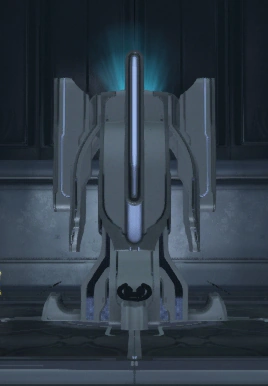
The Trading Post as it appears in-game.
One first needs to find a willing trading partner for whatever it is they are willing to either buy or sell, see Matchmaking section above on this page.
Once a trading partner is found, both trading partners have to be present in either Clan Dojo (excluding Railjack of either trading partner (they do not have to be in the same Clan), or in the same instance of Maroo's Bazaar on Mars.
- The universal way to trade in either location is for one of the partners to hold the Gear key (default Q ), click "SET UP SHOP" and add any random mods/items, while the other player may physically approach the shopkeeper and hit "Use" key (default X ) to start the actual trade, which will remove the mod/items displayed in the shop and present both parties with a new blank trade.
- In Clan Dojo only there is another, easier way to trade. This is done by using a Trading Post - provided at least one has been placed earlier by a Clan Architect. Either partner may physically approach a Trading Post (these are marked with a special icon shown in the icon legend on the Clan Dojo minimap, (default M ). Trading Post itself has 4 cyan consoles around it, and once a player is close enough to one of the consoles - "X | ACTIVATE" text will be displayed, at which point they need to hit "Use" key (default X ). This will show how many daily trades you have left, and also the list of players currently in Clan Dojo and eligible to trade today. Double-click on the entry with the avatar + name of your prospective trading partner to initiate the actual trade.
- Note that any players currently in Clan Dojo, but not eligible to trade will not be shown on the list - this includes players who have exhausted their daily trades, who have not reached Mastery Rank of 2, have not enabled 2FA on their account, or are inside the Railjack in the Dojo. As new players arrive or depart the Dojo - the list will also not be refreshed automatically, but instead needs to be closed and reopened again.
Once the actual trade is initiated, each partner will be presented with their own modifiable list of 6 slots (i.e. 12 slots total for a trade). They can freely edit each of their respective 6 slots at will before the trade is concluded by adding/removing items, and these modifications will be immediately shown to both trading parties. Only 1 of the 12 slots may be used to offer Platinum at any given time, however any amount of platinum may be offered in that slot. Any tradeable items other than Platinum will occupy a separate slot for each unit offered, even if these are duplicate copies of the same item type (e.g. not more 6 Cyan Ayatan Stars may be offered by a partner in a single trade, since each will occupy a separate trade slot).
Once a trading partner is satisfied with what is shown in the 12 trade slots - they may check "READY TO TRADE" tickbox. Altering any of the 12 trade slots will uncheck these for both partners. Once both partners have checked these tickboxes, "ACCEPT BUTTON" will be enabled. Clicking this will show the final confirmation the full names of all tradeables offered by both parties, and "OK" and "CANCEL" buttons below.
Confirmation
Clicking "OK" is perhaps the single most important step, as it will commit the trade and make it irreversible, so please only click it if you are absolutely satisfied with the trade. Each player is personally responsible for not being scammed, and the publisher's policy is to not unwind any trades, even where a player believes they have been scammed. The following tips should help:
- If a trade is cancelled and reopened - this is a red flag, thoroughly check everything again before accepting!
- Always double, triple check that you will be receiving what you and the other player decided upon. It never hurts to be extra cautious, Tenno!
- Trading UI Changes: if a player changes something you will notified instantly. You will then need to re-check to accept the changes before proceeding with the trade.
- Baro Ki'Teer arrivals may cause sharp price drops for his items.
- Recent game patches may cause Void Relics to be vaulted/unvaulted, and/or result in other changes to droptables, including rare/legendary items.
- Announcements should be consulted before confirming a trade, especially for a large amount of platinum.
- Full set vs blueprint only.
- For all tradeable warframes and companions full set is more than just a blueprint, and includes exactly 4 pieces: main blueprint, Neuroptics/Cerebrum, Chassis and Systems (all 4 pieces being uncrafted blueprints in case of warframes). Tradeable Archwing sets likewise consist of 4 parts (albeit named differently).
- For the vast majority of tradeable weapons the set consists of at least 2 items - most often main blueprint + an extra part. In some cases the set includes duplicate parts, as is the case for e.g. Dual Kamas Prime. Exceptions:
- Single-item sets do exist however, such as:
 Ignis Wraith blueprint, Pennant blueprint, Quellor blueprint.
 - Multi-item sets that do not include the main blueprint: Broken War set, Shedu set, Landing Craft sets and most Archgun sets (exception is Imperator Vandal that in fact does include the main blueprint as a part of the set).
- Single-item sets do exist however, such as:
- Names of all items, including variations, or similarly-looking/named items (e.g. Chassis vs Systems or Neuroptics, Arcane Velocity vs. Arcane Victory etc.)
- Ranks of any Mods or Arcane Enhancements traded (e.g. is the seller offering a rank 0 mod, instead of the agreed rank 10?)
- Platinum amount - pay attention to this, including the number of repeating digits, especially after restarting the trade (e.g. the number of zeroes a buyer is offering, 1000 or 100?)
- “Platinum Glitches”: A player might offer to host a “Platinum Glitch” with the promise that it will double your Platinum. They will ask you to enter the desired amount of Platinum you wish to double in the Trade UI. Since “Platinum Glitches” do not exist, the player may complete the trade and leave with your platinum. Take extra care of checking the platinum amount before moving forward with the trade. The amount you confirm in the trading UI will be the amount you give/receive (even if told otherwise).
- “Founders Codes”: Codes to unlock Founders' content in Warframe do not exist. Refrain from trading with players that are offering items/codes that have not been announced or made available by Digital Extremes.
- “Ancient Cores” vs. “Legendary Cores”: Unlike Legendary Cores, Ancient Cores do NOT have the ability to maximize the rank of a mod. Keep this in mind as players will attempt to trade “Ancient Cores” as “Legendary.”
- When trading at the Dojo, make sure Dojo hub tax is acceptable, as it may be as high as additional 100% of baseline game tax (thus doubling the credit tax paid). You can always insist to go to Maroo's Bazaar, where hub tax is always fixed at an additional 10%.
- Psa: Tenno Safe Trading Tips forum post by [DE]Danielle
Personal Trading/Chat History
PC users have a way to partially obtain personal trading and chat history, as long as they have not yet restarted their game session.
There is a partial access to private chat and trading history, with the following observations:
- Only PC users are able to access the history.
- The history is only available until the game is restarted.
- The history is not accessible via the game, other applications have to be used (e.g. Windows Notepad).
- Only certain information is recorded, including:
- The names of players with whom you were in a squad.
- The names of players with whom you had private conversations.
- Your outgoing private messages.
- The names of players you traded with.
- Names and quantities of items (including Platinum) that you both bought and sold when trading.
- Names of items that you bought from the Market.
- Names of items that you attempted building in the Foundry.
- Amounts of Credits and
 Orokin Ducats received when selling items from your Inventory or from a Ducat kiosk in a Relay.
- No messages in public chat channels, such as Clan, Recruiting or Trading, nor any incoming private messages are recorded.
Accessing History
- Main article: EE.log
The history can be accessed in C:\Users\WINDOWSUSERNAME\AppData\Local\Warframe\EE.log, but note that this file is automatically overwritten every time you start the game. Using a text editor, such as Windows Notepad, you can do a text search in this file for the following:
ChatRedux::AddTab: Adding tab with channel name: F
- This will find names of players with whom you had private conversations. E.g.
1743.266 Script [Info]: ChatRedux::AddTab: Adding tab with channel name: FPrivateMessengerPlayer to index 6
PRIVMSG
- This will find your outgoing private messages, including the name of the recipient player. E.g.
1847.978 Net [Info]: IRC out: PRIVMSG RecipientPlayer :Outgoing message
MatchingServiceWeb::ProcessSquadMessage received JOIN message
- This will find names of any players that were in a squad with you (self included), e.g. those you did a mission with, or those you teamed up with in order to trade. E.g.
2531.781 Net [Info]: MatchingServiceWeb::ProcessSquadMessage received JOIN message from SquadMemberPlayer
wants to trade with you
- This will find names of any players that tried to trade with you. Note that this will not include players that you attempted to trade with, but it will include players that attempted to trade with you, but you declined and so no trade actually happened. E.g.
2617.190 Script [Info]: Dialog::CreateOkCancel(description=TradingCandidatePlayer wants to trade with you. Would you like to join their trading session?, leftItem=/Menu/Confirm_Item_Ok, rightItem=/Menu/Confirm_Item_Cancel)
Are you sure you want to accept this trade?
- This will find any trade details you have attempted, including the name of the trading partner, both bought and sold items and Platinum. E.g.
2640.533 Script [Info]: Dialog.lua: Dialog::CreateOkCancel(description=Are you sure you want to accept this trade? You are offering:- IGNIS WRAITH BLUEPRINT
- and will receive from TradingPartnerPlayer the following:
PLATINUM x 100, leftItem=/Menu/Confirm_Item_Ok, rightItem=/Menu/Confirm_Item_Cancel)- If the trade was completed successfully, a few lines below you should find the following, albeit without the name of the trading partner:
2646.343 Script [Info]: Dialog.lua: Dialog::CreateOk(description=The trade was successful!, leftItem=/Menu/Confirm_Item_Ok)- Alternatively, if the trade was cancelled by either trading partner, the follow up record will be:
2646.343 Script [Info]: Dialog.lua: Dialog::CreateOk(description=The trade was cancelled by CancellingTradingPartnerPlayer, leftItem=/Menu/Confirm_Item_Ok)
PurchaseCelebration.swf
- This will find records of any purchases you made from either the Market or from Baro Ki'Teer. For Baro purchases the name of the item purchased is not recorded. For Market purchases - once this record is found, you will need to do a reverse search for
PopulateInfo->to recover the name of the purchased item. E.g. - 3239.730 Script [Info]: PopulateInfo->/Lotus/StoreItems/Weapons/Tenno/LongGuns/DoubleBarrelShotgun/TennoDoubleBarrelShotgun
- ...
- 3248.563 Sys [Info]: Created /Lotus/Interface/PurchaseCelebration.swf
Are you sure you want to build
- This will find the names of any items that you attempted building in the Foundry. E.g.
3487.620 Script [Info]: Dialog.lua: Dialog::CreateOkCancel(description=Are you sure you want to build 'CIPHER'?, leftItem=/Menu/Confirm_Item_Ok, rightItem=/Menu/Confirm_Item_Cancel)- If the user clicks OK to confirm the build, a few lines below you should find the following:
3489.420 Script [Info]: Dialog.lua: SendResult_MENU_SELECT()- Alternatively, if the user clicks CANCEL to cancel the build, a few lines below you should find the following:
3489.420 Script [Info]: Dialog.lua: SendResult_MENU_CANCEL()- Once the build completes, the following record will be added with NNN being some random digits:
3549.420 Script [Info]: Background.lua: Queuing new transmission: DFoundryNNNOrdis
Are you sure you want to sell
- This will find any attempted personal sales either from your Inventory for Credits (internal currency prefix
) or from a Ducat kiosk in a Relay for Orokin Ducats (internal currency prefix ). The names of the items to be sold are not recorded, only the total number of items, and the total value in the relevant currency. - Example of an attempted Credits sale:
3487.620 Script [Info]: Dialog.lua: Dialog::CreateOkCancel(description=Are you sure you want to sell 17 Items for 425?, leftItem=/Menu/Confirm_Item_Yes, rightItem=/Menu/Confirm_Item_No)- Example of an attempted Orokin Ducats sale:
3487.620 Script [Info]: Dialog.lua: Dialog::CreateOkCancel(description=Are you sure you want to sell 19 Items for 585?, leftItem=/Menu/Confirm_Item_Yes, rightItem=/Menu/Confirm_Item_No)- If the user clicks OK to confirm the sale, a few lines below you should find the following:
3489.420 Script [Info]: Dialog.lua: SendResult_MENU_SELECT()- Alternatively, if the user clicks CANCEL to cancel the sale, a few lines below you should find the following:
3489.420 Script [Info]: Dialog.lua: SendResult_MENU_CANCEL()
Troubleshooting
- Unable to see trading partner on the list in Trading Terminal console.
- Check that partner is already inside Dojo, slower computers may take a few minutes to load larger Dojos.
- Check that partner is at least Mastery Rank 2, has enabled their 2FA, and has not yet used all of their daily trades for today. Each player has a limited number of daily trades equal to their Mastery Rank, and these refresh every day at 0000 UTC.
- If partner is in Railjack section of Dojo - they will not be shown on the list until they move out. Esc > FAST TRAVEL > DRY DOCK will fix this.
- Clan architects may place an Arrival Gate decoration in their Dojo to prevent guests from spawning inside Railjack.
- An individual Trade Ban may be in effect.
- After attempting to load the Dojo, I unexpectedly see the trade partner quitting squad and go offline before they arrive at the Dojo.
- Game may crash for some players with weaker computers attempting to load a larger Dojo. Make a squad and go to Maroo's Bazaar in this case.
- Just after I was invited to another Dojo, but before the trade I was kicked from the Dojo with a message saying that all Clan members have left.
- If the host's computer is much slower than the guest's computer - this may be an issue. Make a squad and go to Maroo's Bazaar in this case.
- I cannot enter platinum into the trade.
- Players cannot trade away the initial amount of platinum that all accounts start off with. This is to prevent players from creating new accounts to farm platinum. Players cannot trade platinum that has been gifted to them either.
- Cannot sell item, it shows "Partner Locked".
- Check that the buyer has sufficient Mastery Rank.
- If they have a sufficient MR, they must be located within affinity proximity (no further than about 50 meters) within the Dojo. Being too far away is a known bug that causes the game to assume the buyer has MR 0. Please ensure you can see your buyer and try to trade again.
- Thoroughly check trade details again after the trade is restarted.
- Seller gets an error "Unique copies of abilities cannot be traded".
- This is by design, last copy of any Mod with Precept () polarity cannot be traded away.
- This is by design, last copy of any Mod with Precept (
- The credits of one of the partners are shown in red preventing the partners from accepting the trade.
- This means at least one of the partners does not have enough credits to pay the game tax + hub tax.
- If trading in Dojo - verify that the hub tax rate is acceptable, as it may be as high as 100% more than the base tax. In this case go to Maroo's Bazaar to trade, where hub tax is fixed at 10%.
- You can sell duplicate mods and blueprints without leaving the Dojo/Maroo's Bazaar. ESC > EQUIPMENT > INVENTORY/MODS > sell sufficient duplicate mods or blueprints. Most players have multiple component blueprints for e.g. Harrow and Nyx.
- Thoroughly check trade details again after the trade is restarted.
- This means at least one of the partners does not have enough credits to pay the game tax + hub tax.
- When trading a weapon or riven mod, I get an error that there buyer does not have enough space in the inventory.
- The weapon buyer may either sell currently owned weapons, or buy 2 extra slots for
 12 .
12 .
Players may buy extra weapon slots without leaving Dojo/Maroo's Bazaar by ESC > EQUIPMENT > INVENTORY > WEAPONS. - The riven mod buyer may either sell, transmute or dissolve currently owned rivens, or buy 3 extra slots for 60 .
Players may buy extra riven slots, up to a maximum of 150 (or 180 for MR30+), without leaving Dojo/Maroo's Bazaar, by accessing the wishlist tab of the profile of any player who has previously added riven slots to their wishlist.
- The weapon buyer may either sell currently owned weapons, or buy 2 extra slots for
- Thoroughly check trade details again after the trade is restarted.
Bans
Chat Ban
Manual bans from the trading chat tab or the entirety of the chat system can be enacted by chat moderators if the player breaks the EULA by offering to trade in-game items for non-game items (including cash) outside of the game.[1]
Trade Ban
In addition, players may get automatically tagged by the game's anti-cheat system if they acquire—what the game deems as—an 'unrealistic' amount of loot in a mission, resulting in a two-week trade suspension until the developers review the player's case. These players will receive an in-game inbox message from Warframe's Support Team saying the following:
After the player has been cleared for cheating, the trade ban will be lifted, allowing them to continue trading normally.
Tips
- Manage your trading inventory with a PowerShell script.
References
External Links
- Psa: Tenno Safe Trading Tips forum post by [DE]Danielle
Patch History
Update 37.0 (2024-10-02)
- CROSS PLATFORM PLAY/SAVE CHANGES
Cross Platform Trading/Gifting Changes You can now trade and gift with players regardless of their Cross Platform Save status!
Previously, you could only trade with players who had matching Cross Platform Save account statuses. In other words, someone with a Cross Platform Save account (PC accounts and/or Console accounts that were Linked or Merged) would only be able to trade with others who also had Cross Platform Save accounts. Now, you can trade with and gift anyone (including both sender and recipient) regardless of their engagement with the Cross Platform Save system.
Since this system’s rollout at the end of 2023, players have consistently voiced confusion and frustration at this “hidden” trading restriction. Without knowing whether your Trading partner matched your Cross Platform Save status, a 2 minute jaunt to the Dojo to trade your Prime sets could end up a lot more complicated than previously anticipated.
Now, with Koumei & the Five Fates, players should be able to trade so long as the following requirements are met:
- Be Mastery Rank 2 or higher
- Have TennoGuard 2FA enabled (PC and Cross Platform Save players only)
- Have Cross Platform Play enabled (only if you want to do trades with Tenno on a different platform)
NOTE: Existing restrictions for Cross Platform trading of in-game premium currency to/from some platforms remain (more details in our FAQ).
Hotfix 36.1.1 (2024-08-21)
- Fixed duplicate “Trade” context actions appearing in Maroo’s Bazaar/Dojos when a player sets up shop.
Update 36.0 (2024-06-18)
- Trading Legendary Arcanes now requires you to be Mastery Rank 11.
- It’s important to note that only the player trading requires MR 11 and not the receiver.
- We needed to address an issue with exploitative Legendary Arcanes farming and ban-evasion account creation used to trade Legendary Arcanes. Other options we experimented with had the risk of innocent players getting caught in the crossfire of the ban-evasion subjects. When we took a look at Trading stats we found that a very small number of players below Mastery Rank 10 trade Legendary Arcanes, and therefore decided to go this route. This is purely a means of deterring the bad actors and ensuring legitimate trading for players.
- It’s important to note that only the player trading requires MR 11 and not the receiver.
Hotfix 32.2.7 (2022-12-15)
- Fixed a rare crash that could occur while trading.
Update 32.0 (2022-09-07)
- Fixed mentions of Platinum being capitalized in Trading windows.
Update 31.6 (2022-06-09)
- Fixed accidental trade bans after picking up an Arcane dropped from a Void Angel. As PSA’d here: https://forums.warframe.com/topic/1313615-psa-rectifying-accidental-trade-bans-after-echoes-of-the-zariman/
Update 30.7 (2021-09-08)
- Fixed replacing a Prime Blueprint on the Trading screen not always updating the Ducat value correctly.
Update 30.5 (2021-07-06)
- Updated the Trade error message to “Failed to make offer; your trade partner already owns one or more of these items and cannot receive a duplicate.” when attempting to Trade a Skin that a player already owns.
Update 29.10 (2021-03-19)
- Fixed a non-functional button prompt appearing while trading and using a controller.
- Fixed the Trade window missing a background when accepting a Trade while in your Inventory.
- Fixed camera breaking after exiting a Trade if you accepted the Trade from the Mod window.
Hotfix 29.5.1 (2020-11-19)
- Fixed softlock that would occur if trying to Trade a Mod and Platinum in the same offer.
Update 28.2 (2020-07-14)
- Fixed an issue with protective measures in The Steel Path mode being unoptimized (any accounts impacted have been cleared for Trading).
Update 28.0 (2020-06-11)
- Potential fix towards Trade offer not updating locally on offer failure.
Update 27.4 (2020-05-01)
- The Trading screen will now prompt you with a warning when you’re about to Trade an Arcane that is currently equipped.
Hotfix 27.3.6 (2020-03-31)
- Fixed the Partner MR Locked message when Trading not stating the Mastery Rank. It will now appear as ‘PARTNER <MASTERY_RANK> LOCKED’.
Update 27.3 (2020-03-24)
- Fixed the Trading Policy popup in the Trade screen coming up every time a Trade is opened for some players.
Update 27.2 (2020-03-05)
- Added a “Trading Policy” that will appear when Trading for the first time! Safe trading tips have also been added to the Trade UI.
- Trading is an essential part of Warframe and we felt it important to inform players on how to proceed with trading in a safe manner. All players will be presented with the “Trading Policy” window when trading for the first time ever (Mastery Rank 2 players who have just unlocked trading), and for the first time since downloading the update. This applies to any instance of trading in the Dojo and in Maroo’s Bazaar. Once you’ve accepted the Policy you may access it from the “Trading Policy” button when trading if desired.
Hotfix 25.8.1 (2019-10-09)
- Hyena Change (Razorback mission only)
An Orokin Cell farming exploit was brought to our attention by not only players, but also our internal flagging system when such a method is tripped for misuse. In short, players were forcing the Hyena’s to spawn infinitely by entering/exiting rooms knowing that their Orokin Cell drop rate is 100%. As a result of this misuse, the Orokin Cell drop rate for the Hyena’s in the Razorback mission will diminish the more you spawn, to still allow for multiple drop attempts but without giving away the entire cake. Please note that players who are trade banned due to triggering this exploit will be manually unbanned after this Hotfix.
Update 25.2 (2019-06-19)
- Fixed having 6 unranked Mods in the Trade slots appearing as fully rank after "the slots are full" message prompted, and accepting the Trade results in giving 1 max-ranked same Mod away instead of 6 unranked Mods, even when you didn't swap it.
Update 25.0 (2019-05-22)
- 2FA and Trading
- You are now required to have 2FA enabled to trade with fellow Tenno. It is required to protect both parties from participating in account invasion-related situations. When both players have 2FA enabled, it helps to ensure that the persons trading are the legitimate account holders trading their own items.
Update 24.6 (2019-04-04)
- Typing an item name (ie Stradavar Prime, Equinox Prime, etc) in the Trade screen search bar will now display all Relics that contain that item.
Update 24.5 (2019-03-14)
- The Trading screen now contains a Riven category and specific search functionality!
Update 24.4 (2019-03-08)
- UI Changes & Fixes
- The Dojo Trading screen has received an overhaul!
- 6 Trading Slots instead of 5!
- Faster item selection responsiveness and improved UI to help you easily find the items you want to Trade.
Update 18.5 (2016-03-04)
- A search bar has been added to Trading item sub-menus!
Update 11.2 (2013-12-04)
- Changes to Trading confirmation pop-ups:
- We now show rarity of Mods as well as Rank, to prevent “Fusion Core Fraud”.
- More visibility to the items involved in the trade to increase awareness at every step of the trade.
- Switched order of getting/giving for the trade accept confirmation, to be consistent with the new offer confirmation. What you are **giving is always first, what you are getting is second (matches the slots as well, giving on top, getting on the bottom)
Update 11.1 (2013-11-27)
- Added gamepad support to Trading.
Update 11.0 (2013-11-20)
- Introduced


